One PDA per player
QR Arena installed, a working scanner and enough battery. Use the same version on every PDA. The host can also play.
YOUR PDA IS YOUR BLASTER
The guide to organising a game and playing QR Arena on Android devices.
BEFORE THE TEAM ARRIVES
QR Arena installed, a working scanner and enough battery. Use the same version on every PDA. The host can also play.
All devices must be able to communicate. Internet is not needed. You can also set up a hotspot in Android settings.
A different personal QR code for each player, team bases and, if enabled, shield stations and boxes.
App language: use the language button in the header or Change language in the game menu. Choose Español, Français or English. Your choice is saved on that PDA and does not change other players' language.
The host PDA saves the state and coordinates the game. Keep it powered on and connected. Scanning its QR joins the room, but does not automatically connect to Wi-Fi.
Start with two players, two teams and team battle. Place base:1 and base:2 in separate places and hand out user:1 and user:2. Test a hit and a return to base before organising a full game.
Choose an open area and place labels visibly, without covering the screen or scanner.
HOST WALKTHROUGH
On the home screen, tap Create game · host PDA. Choose the mode and enter the room name.
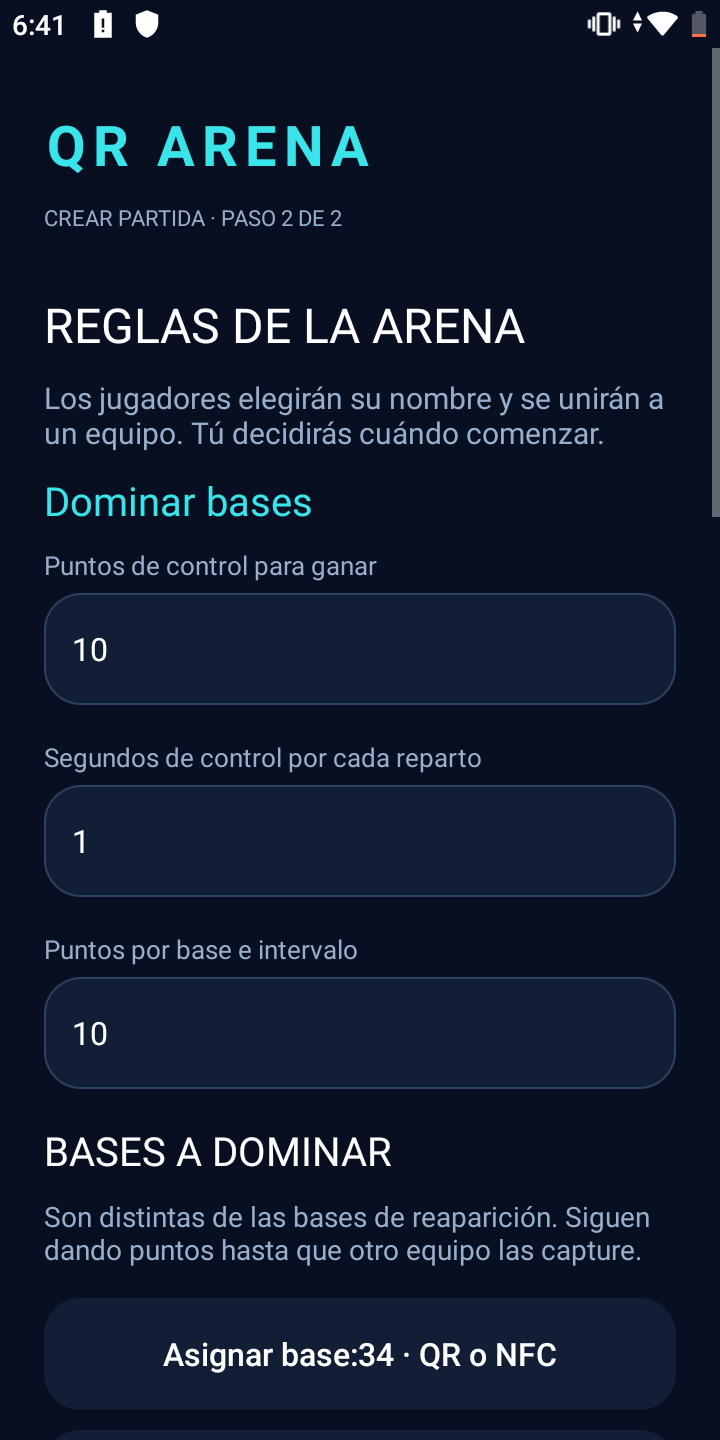
In team modes, create between 2 and 6 teams. Each has its own name, colour and respawn base. Scan a base, for example base:34, to assign it. You can also use NFC or enter its number.
Battle royale has no team selection.
Set duration, health, shields and mode rules. Enable mystery boxes if you want them. Check everything before creating the room: rules are fixed for that game.
In the host panel, show the invitation for each player's chosen team. That QR already contains the room connection and team selection.
Check names, teams and player status. Starting requires at least two players and, in team modes, two occupied teams. In capture the flag, every configured team must have players.
PLAYER WALKTHROUGH
Tap Join a team and scan the QR displayed by the host. For a general invitation, choose your team next. In battle royale, join the room directly.
Scan the QR you will wear, for example user:23. It must be your personal code, different from everyone else's.
Enter an unused name, check your team and confirm. Everyone will see your name when you join.
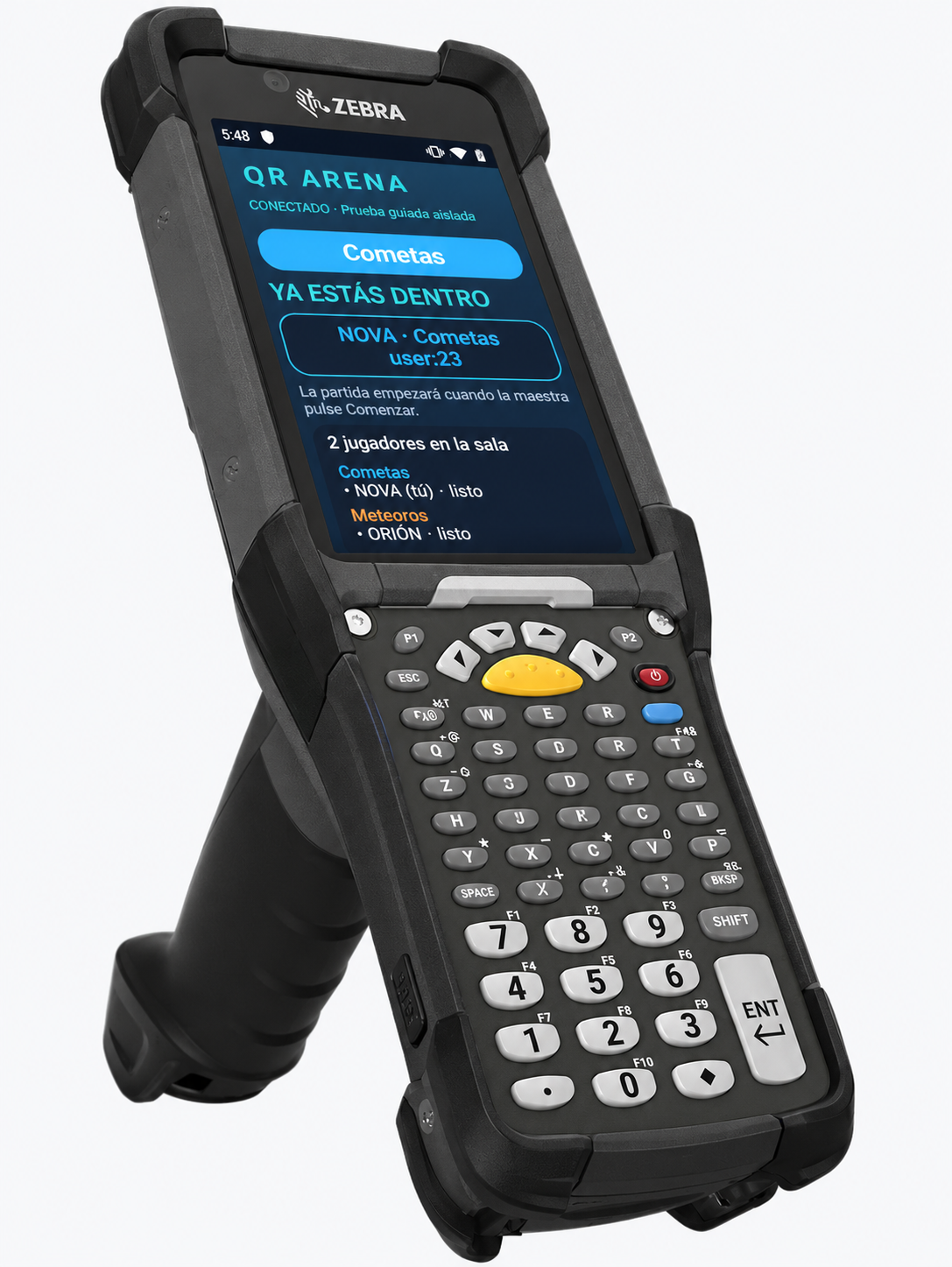
You will see your name, label, team colour and participants. Before starting, you can correct your profile using Edit my name or team.
When the host taps START, every PDA shows a 10-second countdown with sound. Combat opens automatically when it ends.
You do not need to tap a second play button.
user:n are generic: a player can reuse them in another game and choose a different name or team.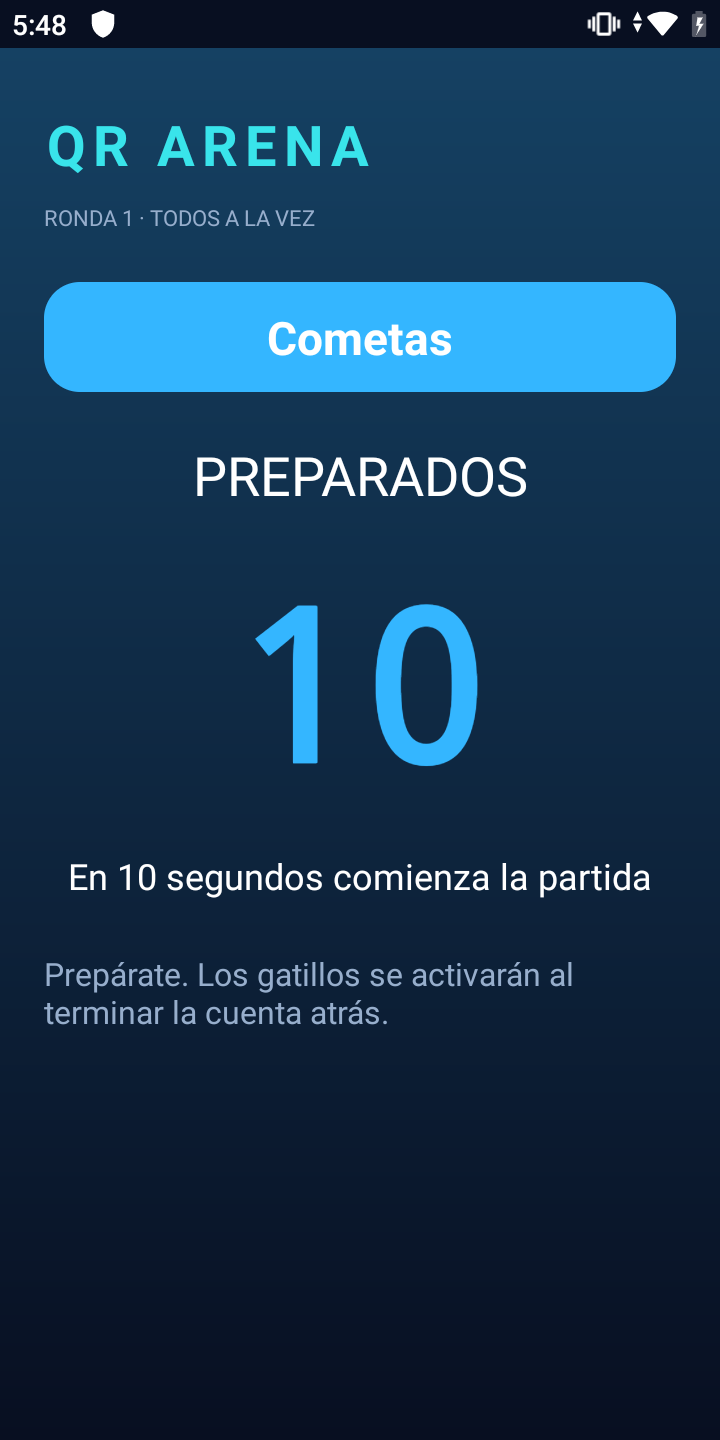
IN THE ARENA
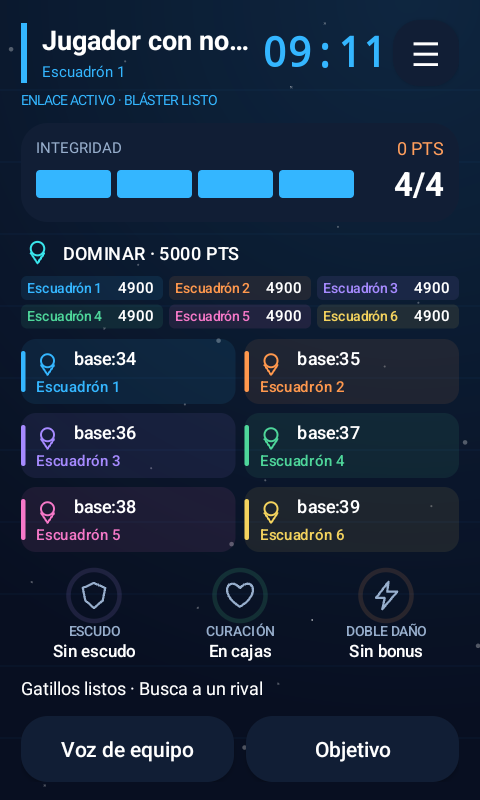
Aim at another player's QR code and press the physical scanner trigger. The reticle briefly closes and a pulse appears in your team colour. There is no on-screen fire button.
A valid opponent scan applies a hit according to the rules. The attacker hears confirmation and the victim receives their own alert. The scanner beep alone does not confirm a hit: check the game message.
The ☰ menu opens standings, rules, sounds and other options. Swipe from the edge to temporarily restore Android bars.
A red wave and visor crack, actual damage indicator, health bar shake, alarm and two vibration pulses.
A purple bubble deforms, with its own sound and three short pulses. One charge is consumed before health is affected.
Fragments, a dimmed scoreboard and a persistent alert. A two-second shutdown sound and prolonged vibration, if supported by the device.
In team modes, when you run out of health, return to your assigned base and scan its QR or tap its NFC tag. You recover health and receive the configured respawn protection. You cannot shoot while that protection lasts.
In battle royale there is no respawn: after elimination, you spectate until the next round.
The Protection after each hit rule creates a short interval during which you cannot shoot or receive another hit. This also applies when a shield absorbs the hit. Wait for the countdown. The host can set 0 to 10 seconds when creating the game.
Trigger, hit confirmation, damage, shield and elimination have distinct cues. At round start, media volume is set high; adjust it in Android or mute sounds from the app menu. Vibration depends on device hardware and settings.
Warnings sound at 30 seconds, 10 seconds and during the last 5. Animations respect Android's reduced-motion setting.
CHOOSE YOUR OBJECTIVE
Each valid hit earns 100 points, even when absorbed by a shield. The team with the most points wins at timeout or when the round is ended.
You can return to your base after elimination. Exact ties remain tied.
You can carry only one flag. If required by the rules, your flag must be home to score. On elimination, the enemy flag returns after the configured delay; a defender can return their own sooner by scanning their base. No dropped-flag QR is printed.
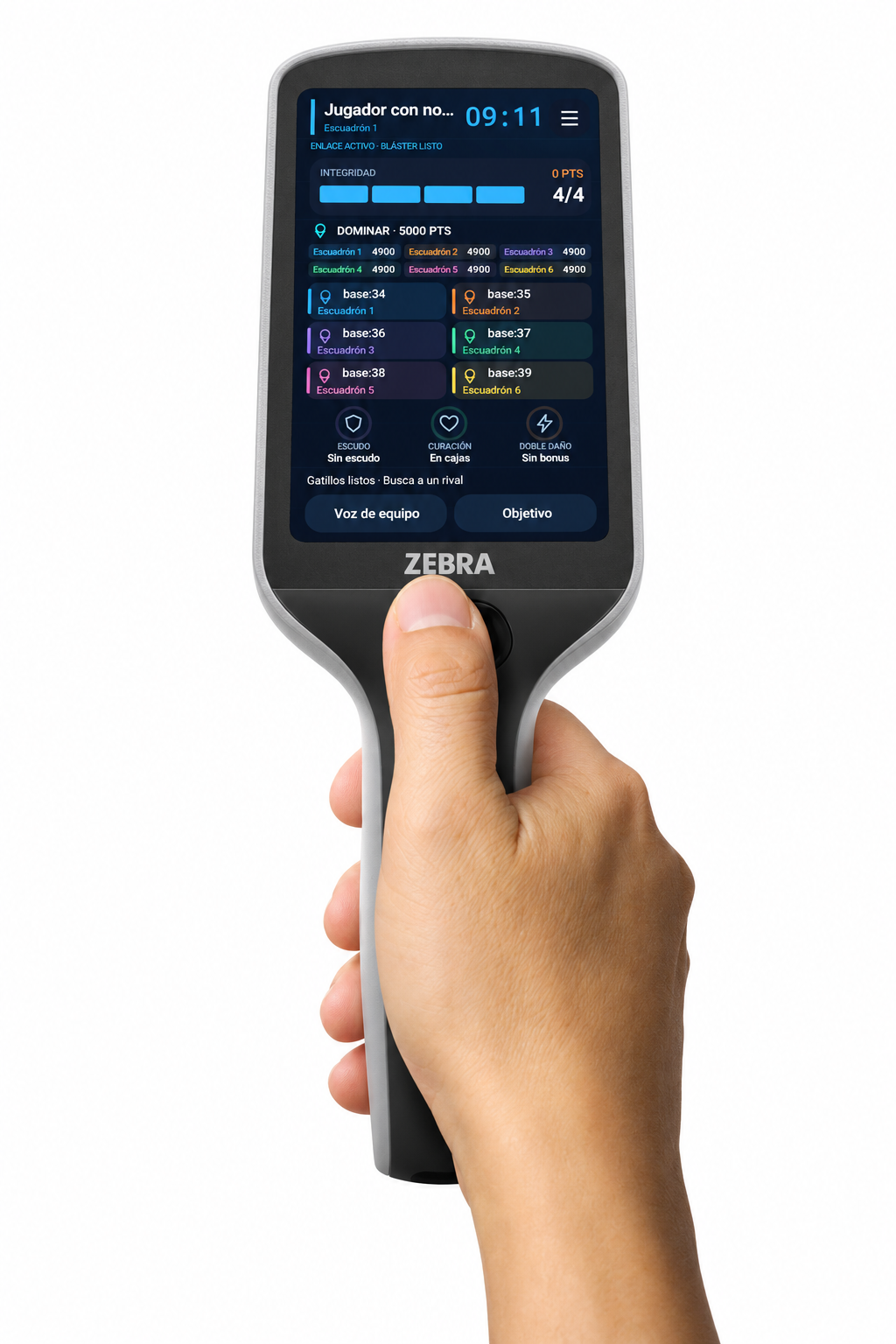
Scan a neutral objective base to claim it for your team. It scores for each complete control interval until another team captures it.
You do not need to stay beside it. Scanning a base you already own adds no points and does not restart its interval. Objective bases must differ from respawn bases. The first team to reach the goal wins; at timeout, control points are compared.
Free-for-all, without teams or respawn. The last player alive wins.
At timeout, compare survival, health, kills and points, in that order. Exact ties remain tied. There is no geographic circle or GPS tracking.
HOST SETTINGS
Choose these options when creating the room. To change mode, teams or rules in an existing room, prepare another game. A rematch keeps the configuration.
| Setting | Options | Effect |
|---|---|---|
| Duration | 1–60 minutes | Combat time, after the countdown. |
| Starting health | 1–10 points | With 4 health, four normal hits eliminate you without shields or healing. Double damage can reduce the number of hits needed. |
| Shields | Enabled or disabled; capacity 1–3 | Each charge absorbs one complete hit, including double damage. Configure shields at start and after respawn. |
| Shield cooldown | 5–600 seconds | Personal wait between station pickups. |
| Protection after a hit | 0–10 seconds | Temporarily blocks your shots and incoming hits. Set 0 to disable. |
| Shot interval | 0–10 seconds | Wait between the attacker's accepted hits. |
| Respawn protection | 0–30 seconds | Protects you after returning to base and blocks your shots for that time. |
| Friendly fire | Enabled or disabled | Determines whether you can hit your own team. |
Flag: goal of 1–20 captures; whether your flag must be home; flag return after elimination from 0–60 seconds.
Domination: 1–6 objective bases; goal of 10–5,000 points; interval of 1–60 seconds; 1–100 points per base and interval.
Enable 1–20 boxes. Codes run from box:1 up to the configured number. Cooldown is shared by everyone, between 5 and 600 seconds per box.
The host draws a useful enabled reward. If none helps you, cooldown is not consumed. Eliminated or temporarily protected players cannot open boxes.
REUSABLE MATERIAL
| Type | Example | Use |
|---|---|---|
| Room or team invitation | Generated by the host | Scan to join. It belongs to that room; it is not a player label. |
| Player | user:23 | Identifies your sticker. It is linked to your name, team and PDA in each game. |
| Base | base:34 | Assigned to a team for respawn or to a neutral domination objective. In flag mode it also handles pickup and delivery. |
| Shield station | shield:1 | Pick up a shield when permitted, without exceeding capacity. |
| Mystery box | box:1 | Pick up a reward from an enabled, available box. |
In the host gallery, enlarge and print labels using Android's print system. Player sheets contain two players per A4: each half has one large QR and four small ones with the same content. The small codes on a half are not different players.
The player PDF contains labels 1–24. The app gallery offers labels 1–32.
Enable NFC in Android and approach a compatible tag already written with an NDEF text record, for example base:34. MIME text is also supported: text/plain. Use it to assign bases, respawn and perform flag or domination base actions.
QR Arena reads tags; it does not write them. NFC is used for numeric bases; players, shield stations and boxes use QR. You can combine QR and NFC with the same ID at a physical base.
EVERYTHING YOU NEED
Download the PDFs and print at 100% / actual size, and download the APK to install QR Arena on PDAs. Use the same version on every device.
Players 1–24 on 12 A4 sheets, with one large and four small QR codes per player. Reusable bases 1, 2, 3, 4, 34 and 52. Mystery boxes 1–20 on four A4 sheets; use only those enabled in your rules.
Download the APK in the PDA browser, open the file and follow Android's instructions. Allow installation from that application if Android asks. You can also copy the file from a computer.
If QR Arena is already installed, install the update. The APK is development version 0.9.0. Update PDAs between games, as the app may restart.
COORDINATE WITH YOUR TEAM
Use the combat shortcut or ☰ menu. Recording for the first time asks for microphone permission.
Record a note up to 15 seconds, then use Stop and send. Leaving the app during recording cancels it.
Your team receives an alert and can open the note to listen. It does not play automatically. The last eight notes per team and round are kept.
Notes travel through the host PDA on the local network. Only your team can access them. There is no team voice in battle royale; a rematch clears the inbox.
FINISH THE ROUND
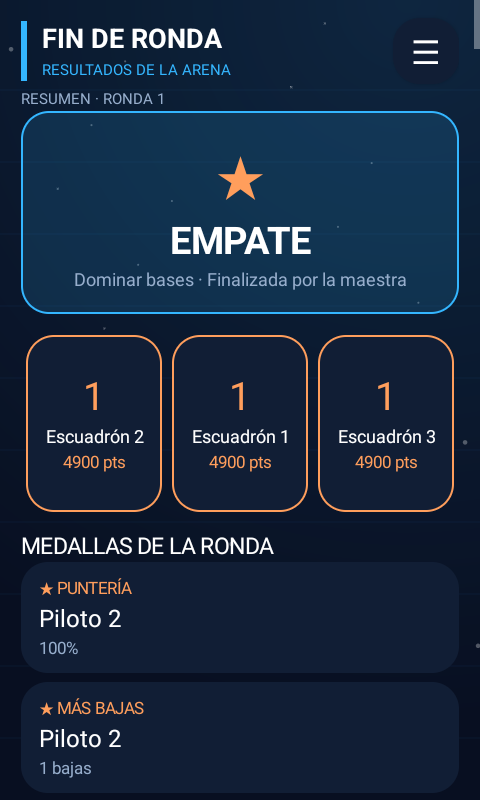
The summary shows winners and podium according to the objective: combat points, captures, base control or survival. Tied entries share a place.
Standings group players by team, or individually in battle royale. They include shots, hits, accuracy, kills, deaths, respawns, shields, boxes and objectives. Activity medals may also appear.
Shot counting depends on scanner events: if the trigger event is not reported, only attempts with a confirmed scan are counted.
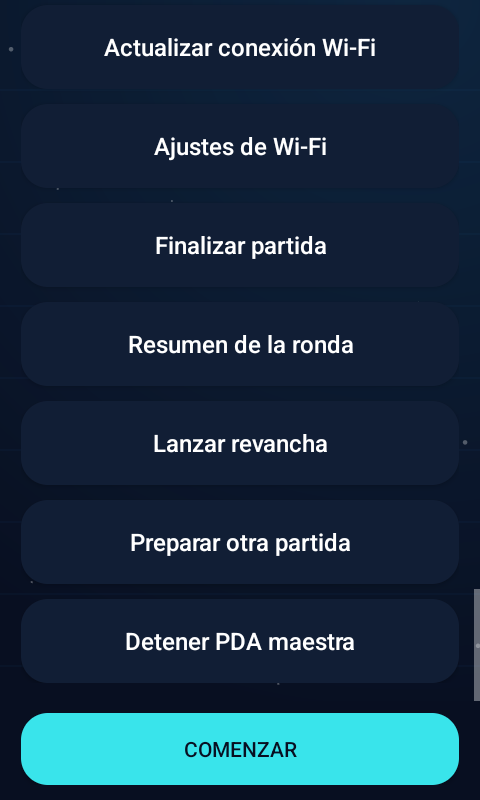
The host taps Launch rematch. Players, teams, bases and rules are kept; health, stats, upgrades, objectives and cooldowns reset. Everyone sees another 10-second countdown.
Go to Home · create or change game or Prepare another game on the host, then create a new room. Show the new invitations so players can join.
Leaving the screen does not stop the host service. To stop it, use Stop host PDA. An active round recovered after a restart opens paused, ready to resume.
On the PDA hosting the room, open Host panel from the menu. Start, pause, resume or end the round according to its state. The main control stays at the bottom of the panel.
WHEN SOMETHING DOES NOT WORK
First scan the team or room invitation displayed by the host. Then scan a generic label such as user:23. A connection invitation and a player QR are different. Avoid old labels containing another game's data; use generic user:n.
You do not need an external server address.
Before starting, use Edit my name or team. To create another room, open Home · create or change game, also available without a connection. To join another room, tap Join a team and confirm forgetting the saved connection when asked. The organiser can release an occupied label from the lobby.
Check QR Arena's message. The game must be running, the target registered and your blaster ready. Friendly fire being disabled, shot cooldown, hit or respawn protection, or a shield can explain unchanged health.
On Zebra, QR Arena uses its DataWedge profile. For keyboard input, check that the scanner sends the code to the app. If no scans arrive, review scanner settings and reopen QR Arena.
You must be eliminated, connected and scan your assigned team base. A neutral objective base is not a respawn base. Battle royale has no return to the round. For NFC, check it is enabled and the tag contains the exact numeric base ID.
Check that the rule is enabled, the code exists in the configuration, cooldown has ended and you are alive. Shields cannot exceed capacity. Boxes cannot be opened during protection and need at least one useful enabled reward.
Players lose the link and shooting is blocked. There is no automatic host replacement. Restore the original host and its saved room; an active round resumes paused. Check Wi-Fi, reconnect with its QR if the address changed and resume from its panel.
Check Android media volume and the menu's sound control. Allow microphone access for recording. Received notes must be opened manually in the inbox. Vibration depends on the PDA and its settings.
This version communicates over local Wi-Fi through the host. Bluetooth is not a game channel. NFC reads nearby bases; it does not connect PDAs to one another.
QR ARENA · USER GUIDE
In the app, find the author, contact and installed version in About QR Arena, from Home or the game menu.
Guide for version 0.9.0 · 26 November 2026.
Back to top